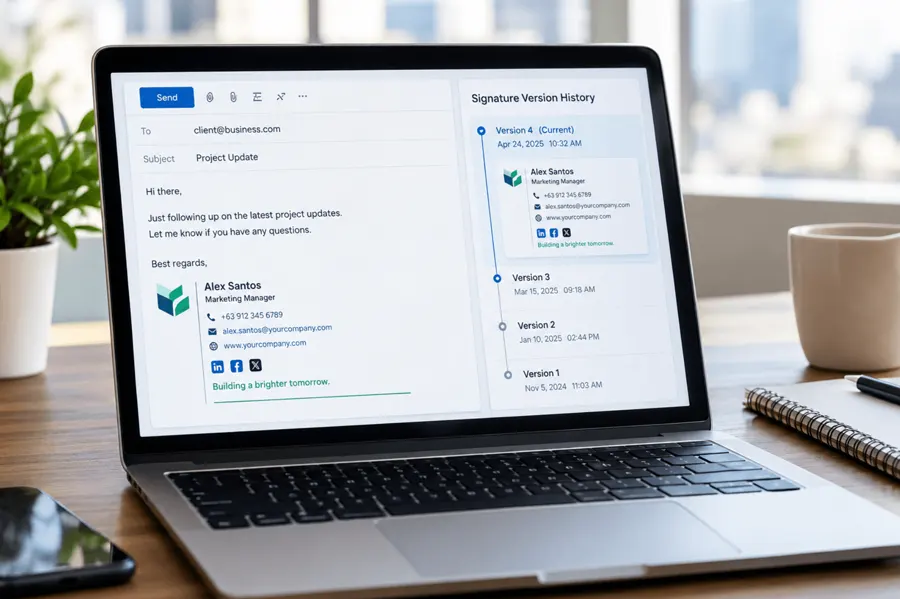
How To Change Email Signature in Outlook – Extensive Guide

Need to change your email signature in Outlook?
Whether you've changed job titles, moved offices, updated your phone number, refreshed your company branding or simply want a more professional signature, Microsoft Outlook makes it possible to edit the information that appears at the bottom of your emails.
However, the exact steps depend on which version of Outlook you're using.
Microsoft now offers several versions of Outlook, including:
- New Outlook for Windows
- Classic Outlook for Windows
- Outlook on the web and Outlook.com
- Outlook for Mac
- Outlook for iOS and Android
In this guide, we'll explain how to change, create and manage your Outlook email signature across each platform.
How to Change Your Email Signature in New Outlook for Windows
The newer Outlook for Windows uses a different settings interface from classic Outlook.
To update an existing signature:
- Open Outlook.
- Select the Settings gear icon.
- Go to Accounts > Signatures.
- If you have multiple email accounts, select the account associated with the signature you want to change.
- Find the signature you want to update.
- Select the Edit option beside the signature.
- Make your changes.
- Select Save.
You can update your name, job title, contact details, links, formatting and other signature content from the editor.
Microsoft provides current instructions in its official guide to adding and changing an email signature in Outlook.
How to Create a New Signature in New Outlook
If you want to create an additional signature rather than change an existing one:
- Open Settings.
- Select Accounts > Signatures.
- Choose the relevant email account if you have more than one.
- Select Add signature.
- Give the signature a recognisable name.
- Enter your signature content in the editor.
- Format the signature as required.
- Select Save.
Giving signatures descriptive names can be useful if you maintain different versions for different purposes, such as:
- General business emails
- Sales enquiries
- Customer support
- Internal emails
- Events
- Marketing campaigns
How to Change Your Email Signature in Classic Outlook for Windows
If you're still using classic Outlook for Windows, the process is different.
To edit your existing signature:
- Open Outlook.
- Select File.
- Choose Options.
- Select Mail.
- Click Signatures.
- Under Select signature to edit, choose the signature you want to change.
- Make your changes in the Edit signature area.
- Select Save.
- Select OK.
You can also access signature settings while composing an email.
Open a new message and select:
Message > Signature > Signatures
This opens the same signature-management window.
How to Create a New Signature in Classic Outlook
To create another signature:
- Open a new email.
- Select Message > Signature > Signatures.
- Under Select signature to edit, select New.
- Give the signature a name.
- Add your signature information in the editor.
- Format the signature as required.
- Select Save.
- Choose the account and default settings you want to associate with the signature.
- Select OK.
Outlook allows you to create multiple signatures and choose which one to use for different email accounts.
How to Change Your Signature in Outlook on the Web
Microsoft's web-based Outlook interface is similar to new Outlook.
To update your signature:
- Sign in to Outlook on the web.
- Select the Settings gear icon.
- Go to Accounts > Signatures.
- Select the appropriate account if necessary.
- Choose the signature you want to edit.
- Make your changes.
- Select Save.
Depending on the Outlook interface available to your account, signature options may also appear under:
Settings > Mail > Compose and reply
From there, you can edit the signature and choose whether Outlook automatically includes it on new messages, replies and forwarded emails.
How to Change Your Outlook Signature on Mac
Outlook for Mac has its own signature settings.
To update a signature:
- Open Outlook.
- From the Outlook menu, select Settings.
- Under Mail, select Signatures.
- Choose the signature you want to update.
- Select Edit.
- Make your changes.
- Close the signature window when finished.
You can also choose which signature should automatically appear for each email account.
If you use multiple email accounts in Outlook for Mac, check that the correct default signature has been selected for each account.
How to Change Your Outlook Signature on iPhone or Android
Outlook's mobile app allows you to change the signature used when sending emails from your phone or tablet.
To change it:
- Open the Outlook mobile app.
- Open Settings.
- Under Mail, select Signature.
- Enter your new signature.
You can also enable Per Account Signature if you want different signatures for different email accounts.
This is particularly useful if you use both personal and business accounts within the Outlook mobile app.
How to Set a Default Signature in Outlook
Creating a signature does not necessarily mean Outlook will automatically use it for every message.
You should also check your default signature settings.
New Outlook
Go to:
Settings > Accounts > Signatures
Select the relevant email account and configure which signature Outlook should use for:
- New messages
- Replies and forwards
Classic Outlook
Go to:
File > Options > Mail > Signatures
Under Choose default signature, select:
- The relevant email account
- A signature for New messages
- A signature for Replies/forwards
You can choose different signatures for new messages and replies.
For example, you might use a full signature containing a logo and contact information on new emails and a shorter version on replies.
How to Manually Insert a Different Outlook Signature
If you have multiple signatures saved, you don't always have to use your default.
When composing an email, select Signature from the message toolbar and choose the signature you want.
This is useful when you have signatures designed for different purposes or audiences.
For example, a salesperson might have:
- Standard corporate signature
- Product launch signature
- Event promotion signature
- International contact signature
Businesses with large numbers of employees, however, can quickly find manual signature management difficult to control. We'll look at centralised management later in this guide.
What Should You Include in an Outlook Email Signature?
A professional business email signature should provide useful information without overwhelming the recipient.
Typical elements include:
- Full name
- Job title
- Company name
- Phone number
- Email address
- Website
- Company logo
Depending on your organisation, you may also include:
- Social media links
- Promotional banners
- Booking links
- Certifications
- Awards
- Office address
- Legal disclaimers
- Privacy information
The objective is to provide recipients with useful information while maintaining a clean and professional appearance.
How to Add a Logo or Image to Your Outlook Signature
A company logo can make an email signature more recognisable and reinforce brand consistency.
Classic Outlook
Open:
Signature > Signatures
Select your signature, position the cursor where you want the image to appear and select the Image icon.
Choose your image and insert it into the signature.
New Outlook and Outlook on the Web
Open your signature under:
Settings > Accounts > Signatures
Use the available formatting tools to add or edit images within the signature.
When using a logo, make sure it is appropriately sized.
An unnecessarily large image can make the signature cumbersome and may display poorly on smaller screens.
How to Add a Link to an Outlook Signature
Links can turn an email signature into a useful navigation and marketing tool.
For example, you might link to:
- Your company website
- An online booking page
- A product or service
- A case study
- An event
- A marketing landing page
To add a hyperlink, select the text or image you want to make clickable and use Outlook's hyperlink option to enter the destination URL.
Make the purpose of the link obvious to recipients rather than filling the signature with unnecessary links.
Why Should You Update Your Email Signature?
Email signatures are easy to create and equally easy to forget about.
Over time, outdated information can remain attached to every email an employee sends.
Common reasons to update a signature include:
Job Title Changes
Promotions, role changes and internal restructures can make old titles inaccurate.
New Contact Information
Phone numbers, email addresses and office locations can change.
Company Rebranding
A new logo, colour scheme or company name should be reflected consistently across business communications.
Website Changes
Old links may point to pages that have been removed or replaced.
New Marketing Campaigns
Businesses can use email signature banners to promote events, products, resources and other campaigns.
Legal or Compliance Changes
Legal disclaimers and regulatory information may occasionally need to be updated.
Keeping signatures current helps ensure the information attached to outgoing email remains accurate and professional.
Why Is My Outlook Email Signature Not Showing?
If you've created or changed your signature but it isn't appearing automatically, check the default signature settings first.
Make sure:
- The correct email account is selected.
- A default signature has been selected for new messages.
- A signature has been selected for replies and forwards if required.
- You saved the changes.
- You're editing the signature associated with the account you're actually sending from.
If you have multiple Outlook accounts, it is particularly easy to edit the signature associated with one account while sending from another.
For additional troubleshooting, see our guide to why an email signature may not be showing in Outlook.
What If You Need to Move Outlook Signatures to Another Computer?
Changing computers or Outlook installations can create another challenge: moving existing signatures.
Depending on the version of Outlook and your account configuration, signatures may be stored or synchronised differently.
If you're migrating Outlook signatures, see our guide to importing and exporting email signatures in Microsoft Outlook.
For business environments, however, relying on individual users to manually move and maintain signatures can become increasingly difficult as the organisation grows.
The Problem With Manually Managing Outlook Signatures Across a Business
Changing one Outlook signature is easy.
Changing 500 or 5,000 employee signatures is a very different problem.
If each employee manages their own signature, organisations can end up with:
- Different logos
- Outdated branding
- Incorrect phone numbers
- Old job titles
- Broken links
- Inconsistent fonts
- Expired promotional banners
- Missing disclaimers
- Different layouts across devices
Marketing, IT and compliance teams then have little control over what appears beneath outgoing business emails.
The more employees an organisation has, the harder manual signature management becomes.
Centralise Microsoft 365 Email Signatures With Crossware
For organisations using Microsoft 365, centrally managed email signatures remove the need to ask every employee to manually update Outlook.
Crossware for Microsoft 365 enables organisations to centrally create, control and update professional email signatures across users and devices.
Instead of relying on each employee's local Outlook signature settings, administrators can manage company-wide signature rules from a central platform.
This can help organisations maintain consistent:
- Branding
- Contact information
- Signature layouts
- Legal disclaimers
- Promotional banners
- Department-specific content
- Internal and external signature rules
Crossware can apply Microsoft 365 email signatures according to centrally defined rules, helping ensure outgoing messages use the appropriate corporate signature regardless of the device employees use.
For larger organisations, this provides significantly more control than asking individual users to manually update Outlook every time something changes.
When Should Businesses Use Centralised Signature Management?
Manual Outlook signatures may be perfectly adequate for an individual or very small organisation.
Centralised email signature management becomes more valuable when:
- Many employees need the same branding.
- Staff regularly join or leave the organisation.
- Job titles and contact information change frequently.
- Multiple departments require different signatures.
- Employees send email from different devices.
- Marketing banners need to be changed regularly.
- Legal disclaimers must be controlled.
- Brand consistency is important.
- IT teams don't want employees editing signatures manually.
Rather than treating each Outlook signature as an individual setting, the organisation can manage email signatures as a company-wide communication asset.
Outlook Email Signature Best Practices
When updating your Outlook signature:
- Keep contact information current.
- Use consistent company branding.
- Keep the design clean and easy to read.
- Avoid oversized logos and images.
- Check links before publishing.
- Make sure the signature works on smaller screens.
- Use a clear hierarchy for your information.
- Avoid adding unnecessary text.
- Keep marketing banners current.
- Remove expired campaigns.
- Check default settings for new messages and replies.
- Test the signature by sending emails to different devices where appropriate.
For companies with multiple employees, consider whether central management would provide better consistency than maintaining signatures individually.
Frequently Asked Questions
How do I change my email signature in Outlook?
In new Outlook, go to Settings > Accounts > Signatures, choose the signature you want to edit, make your changes and save them.
In classic Outlook for Windows, go to File > Options > Mail > Signatures, select the signature and edit it.
Where are Outlook signature settings?
The location depends on your Outlook version.
New Outlook: Settings > Accounts > Signatures
Classic Outlook: File > Options > Mail > Signatures
Outlook for Mac: Outlook > Settings > Signatures
Outlook mobile: Settings > Mail > Signature
Can I have more than one email signature in Outlook?
Yes. Outlook supports multiple signatures, allowing you to choose different signatures for different accounts or situations.
Can I use different signatures for new emails and replies?
Yes. Outlook allows you to configure different default signature behaviour for new messages and replies or forwards.
How do I add my logo to an Outlook email signature?
Open the Outlook signature editor and use the image option to insert your company logo. Keep the image appropriately sized so the signature remains readable across different screen sizes.
Can I add hyperlinks to my Outlook signature?
Yes. You can add clickable text and links to websites, social media profiles, booking pages and other online resources.
Why isn't my Outlook signature appearing automatically?
The most common issue is that a default signature hasn't been selected for the relevant email account or message type. Check the signature settings for new messages and replies/forwards.
How do I change my Outlook signature on my phone?
In Outlook for iOS or Android, open Settings, find Signature under Mail and edit the text. You can also enable separate signatures for individual accounts.
Can a company manage everyone's Outlook signatures centrally?
Yes. Organisations using Microsoft 365 can use centralised email signature management software such as Crossware to control signatures across employees without requiring each person to manually edit their Outlook settings.
Keep Outlook Email Signatures Accurate and Consistent
Changing your personal email signature in Outlook only takes a few minutes once you know where the settings are located.
The important thing is identifying which Outlook version you're using, because new Outlook, classic Outlook, Outlook on the web, Mac and mobile do not all use exactly the same settings interface.
For individual users, Outlook's built-in signature tools provide the controls needed to create and update professional signatures.
For organisations, however, manually managing signatures employee by employee becomes increasingly difficult as the workforce grows.
Crossware Email Signature for Microsoft 365 gives businesses central control over email signature branding, contact information, banners and rules across users and devices.
Rather than asking every employee to change their Outlook signature manually whenever something changes, your organisation can manage those updates centrally.
Want to simplify Microsoft 365 email signature management across your organisation? Start a free Crossware trial.